Tinkercad Review & Guide (2026): Free 3D Design, Circuits & Code
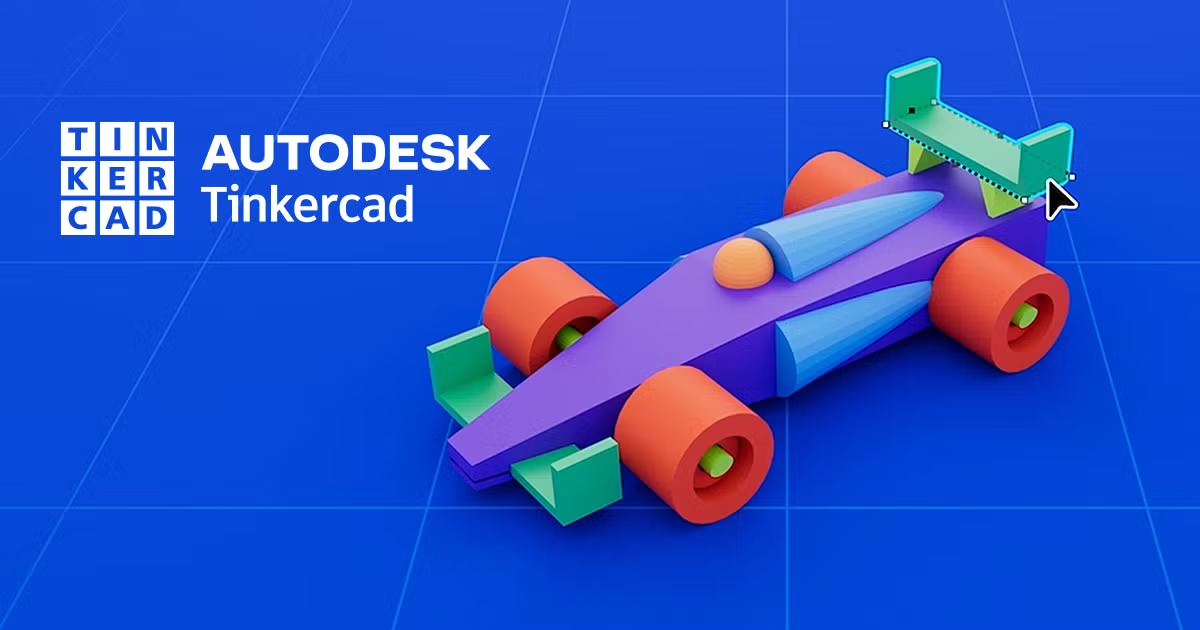
If you’ve typed “tinkercad” into Google, you’ve probably already noticed something: half the articles read like they were written by someone who’s never actually opened the app. This one isn’t that. Tinkercad is Autodesk’s free, browser-based design tool for 3D modeling, circuit simulation, and block-based coding, and it’s quietly become the first stop for millions of students, teachers, and hobbyist makers who want to go from idea to 3D-printed object without buying software or learning a professional CAD program first. What follows is everything you actually need to know — what it does, what it doesn’t, where it’s headed in 2026, and the stuff most guides gloss over entirely.
What Tinkercad Actually Is (And Who It’s Really For)
Tinkercad runs entirely in your browser, no download required, and it’s been free since Autodesk acquired it back in 2013. At its core, it’s a constructive solid geometry tool — you build objects by combining, stacking, and subtracting basic shapes like boxes, cylinders, and spheres rather than sculpting freeform surfaces the way you would in Blender. That sounds limiting, and in some ways it is, but it’s exactly why a ten-year-old can learn it in an afternoon while a professional CAD tool like Fusion 360 or SolidWorks would take weeks.
The platform actually covers three separate disciplines under one login: 3D design, electronics circuit simulation, and Codeblocks, a drag-and-drop visual programming system. That combination is rare. Most beginner tools pick one lane. Tinkercad lets a student model an enclosure, wire up an Arduino circuit inside it virtually, and then write the code to run that circuit — all without leaving the browser tab. That’s the real reason schools lean on it so heavily for STEM curricula aligned with ISTE, Common Core, and NGSS standards.
The Tools That Actually Matter (Not Just a Feature List)
Most reviews just dump a bullet list of tools and move on. Here’s what actually changes how you work in Tinkercad. The Hole tool lets you subtract one shape from another to carve openings, which is the single most-used technique for anyone designing a case or enclosure. Smart Duplicate lets you replicate an object while automatically stepping its position, rotation, or scale — genuinely useful once you’re building anything with repeated elements like a gear or a vent pattern. Align snaps multiple objects into perfect symmetry along an axis, which sounds minor until you’ve tried to eyeball-align four screw holes by hand and failed three times.
There’s also a Scribble tool for freehand 2D sketching directly on the workplane, and Tinkercad accepts imported SVG files that you can extrude into full 3D geometry — handy if you’ve already got a logo or flat design you want turned into a printable object. None of this makes Tinkercad a replacement for professional CAD. What it does is remove every barrier between “I have an idea” and “I have a file I can send to a printer,” which is the entire point.
What Sets Tinkercad Apart From Blender, SketchUp, and Onshape
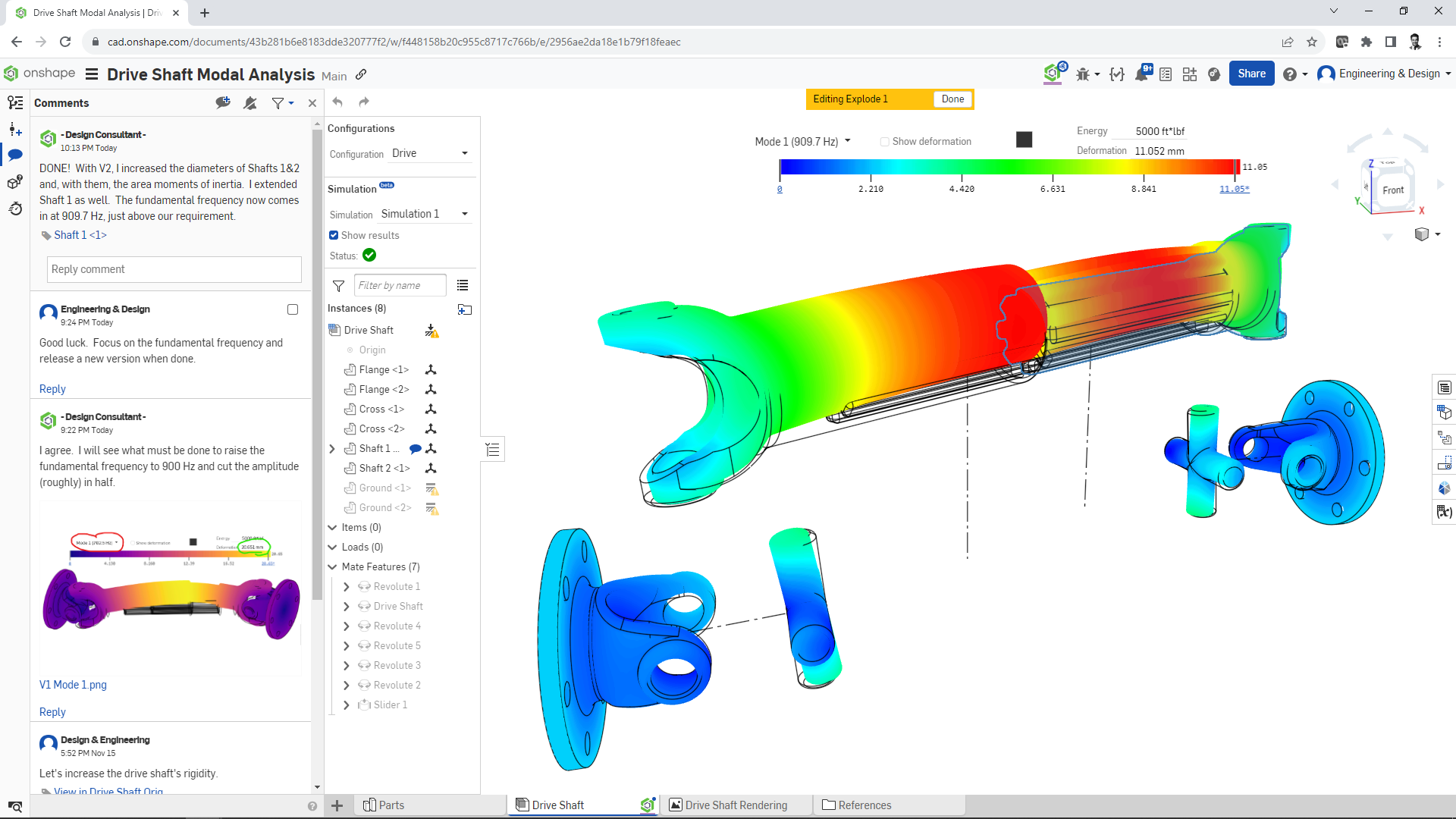
This is the section most competitor articles either skip or handle badly. Blender is free too, and it’s vastly more powerful, but it’s built for organic modeling, animation, and rendering — the learning curve is steep enough that most beginners quit before finishing a single object. SketchUp is closer in spirit but leans architectural and isn’t nearly as friendly to true solid, printable geometry. Onshape is a genuinely professional parametric CAD tool with a free tier, but it assumes you already understand CAD concepts like sketches, constraints, and features.
Tinkercad’s actual advantage isn’t raw capability — it’s that nothing is locked behind a paywall or a tier. Every tool, every shape in the library, every feature across all three disciplines is available the moment you sign up, with zero restrictions gating basic use. That “no hidden limits” structure is unusual in software right now, when most tools dangle a free trial and then wall off the parts you actually need. The tradeoff, and it’s a real one, is precision. Complex parts, tight tolerances, and detailed mechanical assemblies are where Tinkercad starts to strain, and serious makers eventually outgrow it and move to Fusion 360, which Autodesk clearly designed as the natural next step.
Why Schools and Makers Actually Use It
Here’s the thing most people searching “tinkercad” actually want to understand: why does this specific tool dominate classrooms when there are dozens of alternatives? Part of it is Autodesk’s backing — teachers trust a company with decades of CAD credibility over an unknown startup tool. But the bigger reason is that Tinkercad ships with ready-made lesson plans and project templates built around real grade-level standards, so a teacher with zero CAD background can run a functioning unit without building curriculum from scratch.
For hobbyists and makers, the draw is different but related. Someone who wants to print a replacement bracket, a phone stand, or a custom enclosure for a Raspberry Pi doesn’t need parametric modeling or photorealistic rendering. They need to go from a rough idea to an exportable STL file in under an hour, and Tinkercad’s shape library — split across categories like Basic Shapes, Design Starters, and Creatures & Characters — is deep enough to get most simple projects done without starting from a blank cube every time.
Common Myths About Tinkercad, Cleared Up
There’s a persistent myth that Tinkercad is “just a toy” and can’t produce real, usable 3D-printed parts. That’s simply not accurate — plenty of functional prototypes, jigs, and small mechanical parts get designed and printed straight from Tinkercad every day, especially anything that’s dimensionally simple. The limitation isn’t whether the output is “real,” it’s how complex the geometry can get before the tool becomes cumbersome.
Another one worth knocking down: people assume Tinkercad requires an Autodesk subscription because Autodesk’s other products, like AutoCAD and Fusion 360, do carry paid tiers. It doesn’t. Tinkercad has remained genuinely free for individual use since Autodesk took it over, and that hasn’t changed heading into 2026. Finally, some assume the electronics simulator is a gimmick — it isn’t. It runs real circuit logic, so a virtual Arduino sketch that works in Tinkercad’s simulator will, in almost every case, behave the same way on physical hardware.
What’s New With Tinkercad in 2026
If you last used Tinkercad a couple of years ago, the workflow itself has gotten noticeably smoother. Object placement, scaling, rotating, and snapping behave more predictably now, which matters most when you’re assembling a design out of many small parts and need to select exactly the right one without fighting the interface. Autodesk has also been refining collaboration and classroom management tools, making it easier for teachers to oversee multiple student projects and for small groups to co-edit a design in real time.
The bigger-picture trend is that Autodesk keeps treating Tinkercad as the deliberate on-ramp to its professional ecosystem rather than a standalone product it’s letting stagnate. Expect continued incremental polish to navigation and project setup rather than a dramatic overhaul — Tinkercad’s whole value proposition depends on staying simple, so Autodesk isn’t rebuilding it into a mini-Fusion 360. That restraint is arguably the smartest product decision they’ve made with it.
Tinkercad FAQ
Is Tinkercad really free?
Yes. Individual accounts get full access to 3D design, circuits, and Codeblocks with no paywalled features. Autodesk does offer paid tiers for its other CAD products, but Tinkercad itself has stayed free.
Do I need to install anything to use Tinkercad?
No — it runs entirely in a web browser. You’ll need a reasonably modern browser and a stable internet connection, since nothing is stored or processed locally.
Can Tinkercad files be 3D printed?
Yes, you can export designs as STL, OBJ, or GLB files, which are compatible with virtually every consumer 3D printer’s slicing software.
What age group is Tinkercad designed for?
It’s used from elementary school through adult hobbyist makers. The interface is simple enough for kids but capable enough that plenty of adults use it for genuine prototyping.
Does Tinkercad have an API for developers?
No, Tinkercad does not currently offer a public API for third-party integration.
How is Tinkercad different from Fusion 360?
Tinkercad uses simple shape-combination modeling aimed at beginners, while Fusion 360 is a full parametric, professional-grade CAD tool. Autodesk positions Tinkercad as the beginner step before Fusion 360.
The Bottom Line
Tinkercad earns its reputation honestly. It’s not trying to be everything — it’s trying to be the fastest, least intimidating path from a rough idea to a real, printable 3D object, and at that specific job, it’s hard to beat. If you’re a teacher building a STEM unit, a parent looking for something your kid can actually learn in one sitting, or a maker who just wants a quick enclosure without a CAD degree, Tinkercad still does exactly what it set out to do back in 2010: make 3D design boring-proof and genuinely accessible. Once you outgrow it, you’ll know — and Autodesk has already built the next step waiting for you.